|
One more step, before adding the text, is required. We'll change the contrast of the colors. To do this, turn off the background layer. Simply click the "eye" icon next to the layer:
on:  off: off: 
Select the layer with the two images. Go to Image -> Apply image and find the Blending options. Select Screen from the options, and make sure you have 100% Opacity. Click ok. Your image should look like this:
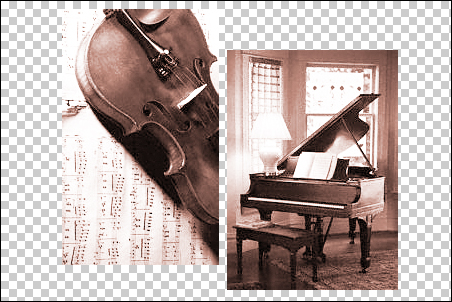
Next go to Image -> Apply image and from the Blending options select Color Burn with the Opacity only 50% this time. Your image should look like this:
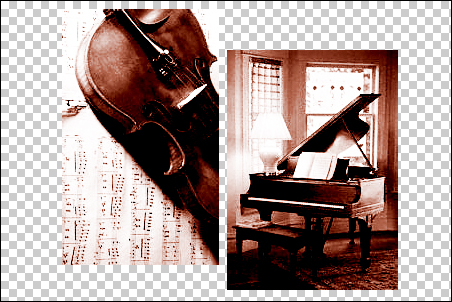
Turn on your background layer, add the text and you're done.

Copyright www.ereptum.com - Naomi C. Martinson
| 