|
Two images were used for this project:
 
To begin, right-click on each of the above images one at a time and choose "Save Picture As" then save the image to
your desktop, or another location you can easily find when we want to open the file later in our learning process.
Now, let's make a new file in Photoshop, width 450 and height 300 as shown below.
Open Photoshop. On the top toolbar, click "File > New" and then specify the height and width and choose a name.
Save this file to the same location used above.
 On your left toolbar, there are two color boxes. These show the colors which will be used when any tool is applied to
selected items in your project. Changing the color of these boxes does not make changes in itself, but these colors will be used when any tool is applied. On your left toolbar, there are two color boxes. These show the colors which will be used when any tool is applied to
selected items in your project. Changing the color of these boxes does not make changes in itself, but these colors will be used when any tool is applied.
In this instance, we will be using the gradient tool for our first layer, so we
need to change the two boxes to these values: foreground 000000, background 5B1400.
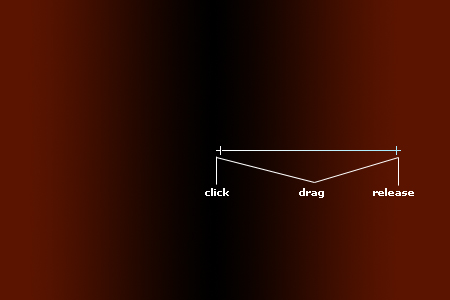
The color effect was made using the Gradient Tool (G) which can be found underneath the paint bucket. If you look closely, you will see a tiny triangle at the right bottom of several tools in the toolbar. When the mouse is held over the top of that triangle, a box opens which shows the other tools in that "category". By clicking any of them, that selected tool becomes the "top" of that category. Choose the gradient tool and drag across the
image until you're have a result close to this example, using the method as shown in the diagram. Don't forget you can always use Ctrl + Z to undo any action.
| 